Description
This SHIM provides a convenient way to power your Raspberry Pi Pico from a LiPo/LiIon battery. You can easily charge the battery by supplying power to the Pico’s USB port.
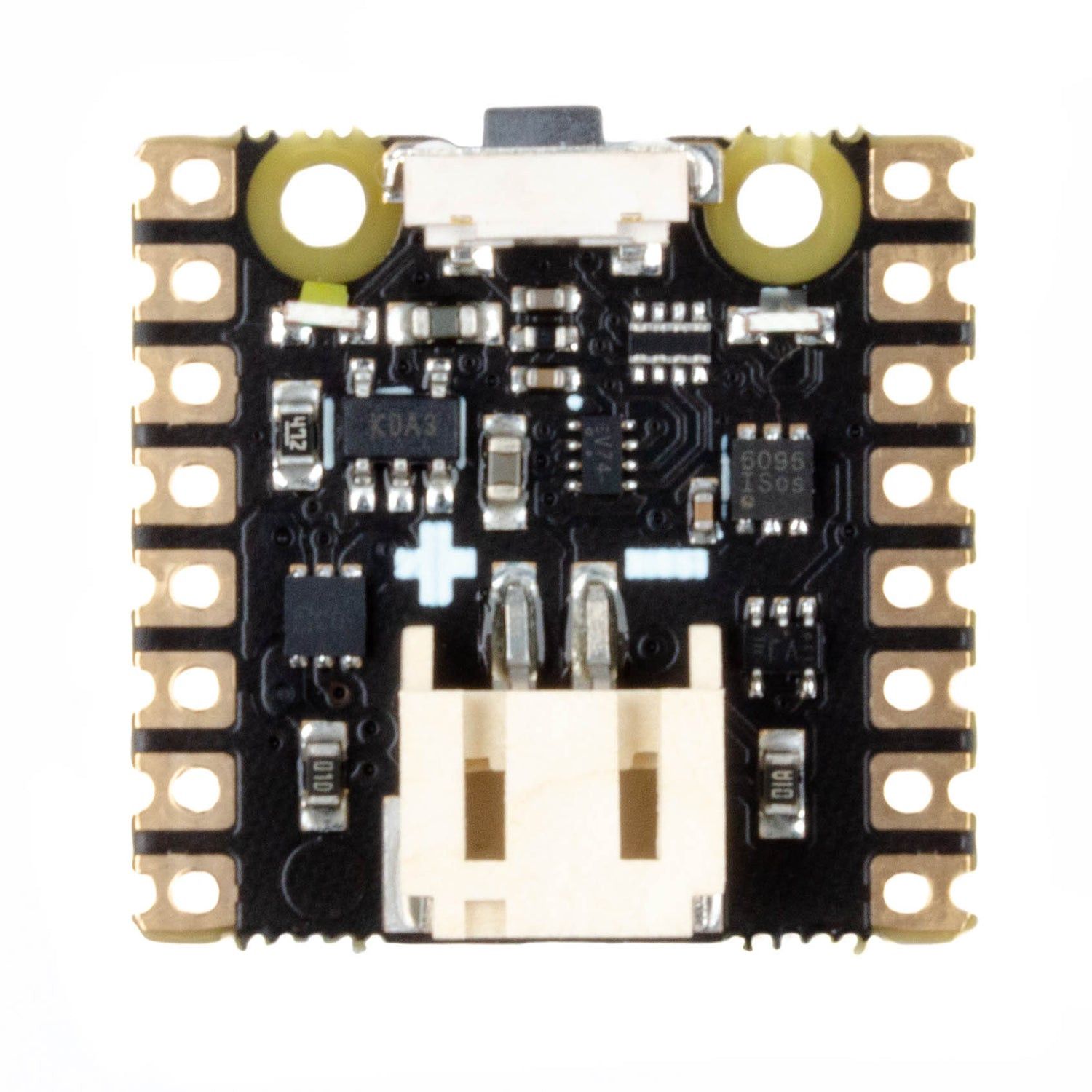
Solder this neat little square to the pins on the back of your Pico, connect a suitable lithium-ion/polymer battery and tada — LiPo Pico! Built-in charging circuitry means you can charge the attached battery by supplying power to the Pico over USB, and it includes over-discharge and over-voltage protection. There’s a power switch to stop the SHIM delivering battery power when it’s not needed and to turn your project on and off, and two LED indicator lights — white to show when the SHIM is supplying power and red to show when the battery is charging.
We’ve designed it to be as thin as possible so it can sit under other add-ons like Pico Packs and bases, and it’s compatible with all of our LiPo, LiIon and high-capacity LiPo batteries.
Safety notice! Use this SHIM only with LiPo or LiIon batteries and ensure any projects containing LiPo batteries are adequately protected from knocks, bending, puncturing or crushing.
- MCP73831 charger with a 215mA charge current (datasheet).
- XB6096I2S battery protector (datasheet)
- Power switch
- 2-pin JST PH connector, polarity marked on the PCB.
- Power and charging LED indicators
- Compatible with Raspberry Pi Pico.
- Soldering required.
- Dimensions: approx 21mm x 21mm x 7mm (L x W x H, including connectors).
- Schematic
Raspberry Pi Pico, battery and other Pico add-ons are not included!
Getting started
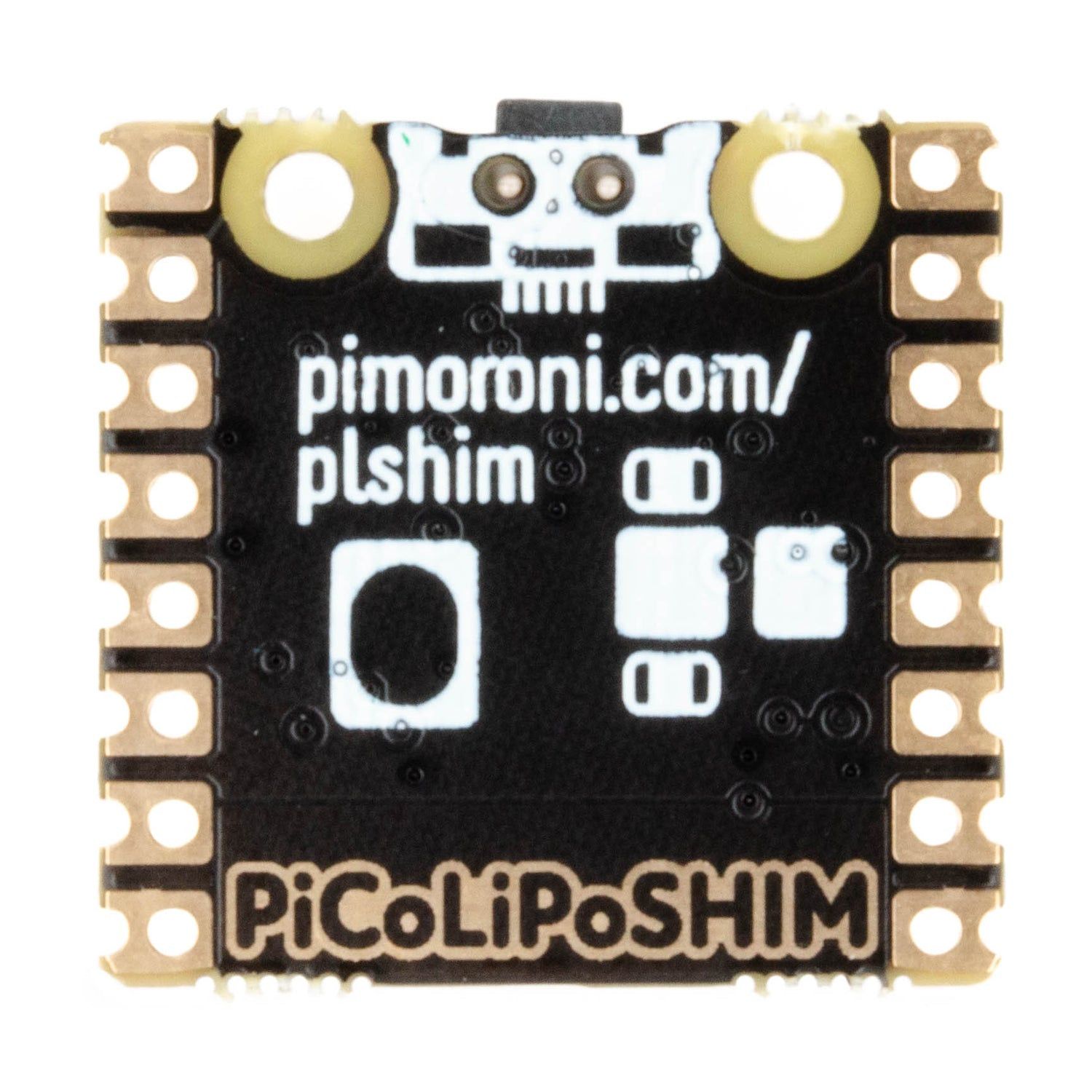
You need to solder the SHIM to the back of the Pico so the power switch is at the same end as the USB port. The SHIM text and the markings on the header pins on the back of the Pico should face each other.
Software
You can use the LiPo SHIM for Pico with any Pico OS as it does not require any software to be installed to work.
We’ve put together a MicroPython example that shows how you can read the system voltage from the Pico’s VSYS pin to estimate how much charge remains in the battery, and display it on the Pico Explorer or Pico Display.
Notes
- The power switch can also be used as a reset button, woo! Press it twice to cut and restore power while holding the Pico’s BOOTSEL button down to enter the bootloader without plugging or unplugging any cables.
- Because the Pico Display has a chunky display connector underneath, you may have trouble fitting the SHIM underneath if your Pico’s header pins are the short variety. We recommend getting longer stacking headers or the Pico Omnibus / Pico Decker if you want to use this SHIM with the Pico Display.
- Alternatively, if you’re feeling adventurous with experimental soldering, you can try soldering the headers on the short end of both the Pico and the SHIM back-to-back. This method gives you a much thinner Pico/SHIM package that works nicely with the Pico Display, but you must ensure your solder joints make good contact with the pads on both boards and the header.